How to Get a Business Email Address on Your Own Domain
Set up a business email like [email protected]: compare Google Workspace, Microsoft 365, Zoho Mail and forwarding, and get MX, SPF, DKIM and DMARC right.
By the GENL teamUpdated 8 min read
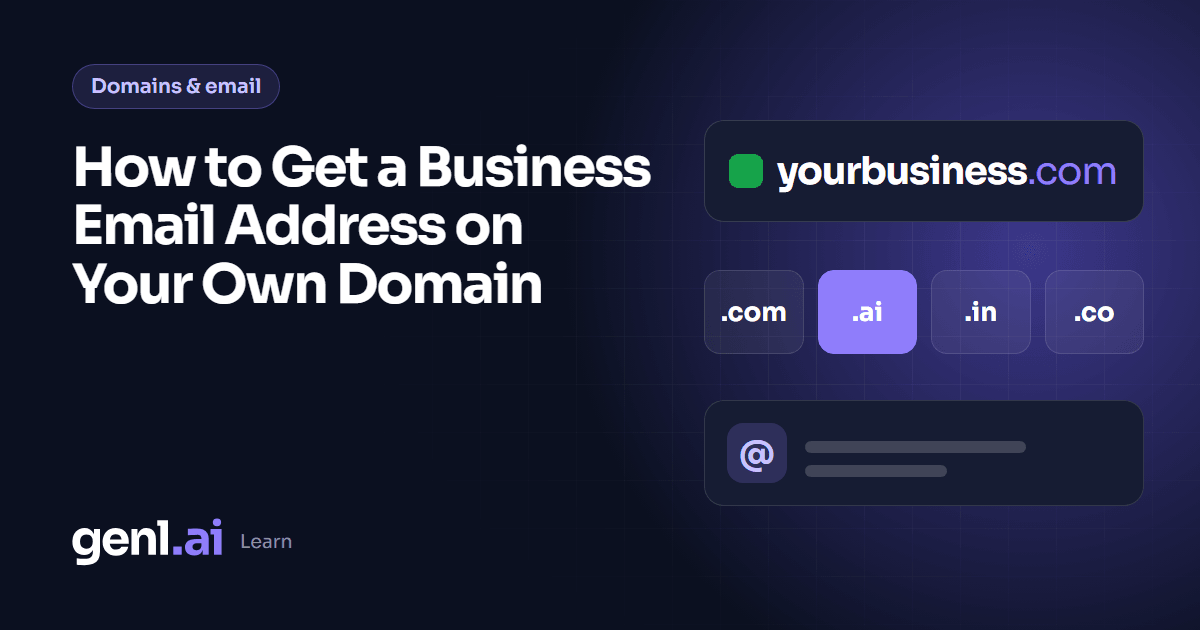
To get a business email address such as [email protected], you need two things: a domain you own, and an email service that handles mail for it. The main choices are a hosted mailbox from a provider like Google Workspace, Microsoft 365 or Zoho Mail, or free forwarding to an inbox you already use. Whichever you choose, you add a few DNS records the provider gives you so mail arrives and your messages are trusted.
This guide compares the options, explains those records in plain English, and walks through the setup step by step.
Why use your own domain for email
An address on your own domain looks established and is easy to remember, because it matches your website. It also keeps you in control:
- It belongs to the business. If you change email provider, you keep the same address. If a team member leaves, their mailbox stays with the company.
- It is consistent. Your website, invoices, business cards and social profiles all point to one name.
- It is harder to impersonate. With the right security records, receiving mail servers can check that messages claiming to be from your domain really came from you.
If you do not have a domain yet, start with how to choose a domain name.
Your options
There are two broad approaches: a full mailbox on your domain, or forwarding to an inbox you already have.
| Option | What you get | Good for | Things to know |
|---|---|---|---|
| Google Workspace | Gmail with your domain, plus Google's calendar, documents and storage | Teams that like Gmail and Google's apps | Paid per user per month; price varies by plan and country |
| Microsoft 365 | Outlook with your domain, plus Microsoft's office apps and storage | Teams that use Word, Excel and Outlook | Paid per user per month; several business plans |
| Zoho Mail | A business mailbox with your domain, plus Zoho's apps | Budget-conscious teams wanting a real mailbox | Has a free plan at the time of writing, with limits on users and features; paid plans add more |
| Email forwarding | Mail to your domain is passed on to an existing inbox, such as a personal Gmail | Solo owners or a few shared addresses like hello@ | Often free and quick; replying from your domain address may need extra setup |
Plans and prices change, so check each provider's own pricing page before deciding. A few practical questions narrow it down quickly:
- How many people need their own address? Mailbox providers charge per user, so shared addresses like
hello@ororders@set up as aliases or groups can save money. - Which apps does your team already use? If everyone lives in Google Docs or Microsoft Office, the matching email provider fits most naturally.
- Do you need to send from the address, or only receive? Forwarding is ideal for receiving. For regular sending, a hosted mailbox is simpler and more reliable.
The DNS records, explained simply
Email for your domain is controlled by DNS records, settings stored with your domain that tell other mail servers what to do. If DNS is new to you, our guide to domains, DNS and SSL covers the basics. For email you will meet four records.
MX: where your mail is delivered
An MX record (mail exchanger) tells the world which servers receive email for your domain. Think of it as the forwarding address you give the post office. Your provider gives you one or more MX records, each with a priority number; lower numbers are tried first. Without correct MX records, nobody can email you.
SPF: who is allowed to send
SPF (Sender Policy Framework) is a TXT record listing the services allowed to send email on behalf of your domain. Receiving servers check it, and messages from anywhere else look suspicious. A domain should have only one SPF record. If you use several sending services, such as your mailbox provider plus a newsletter tool, combine them into that single record rather than adding a second one.
DKIM: a tamper-proof signature
DKIM (DomainKeys Identified Mail) adds an invisible digital signature to each message you send. Your provider publishes a matching public key in your DNS, usually as a TXT or CNAME record. Receivers use it to confirm the message really came from your domain and was not altered on the way. You typically switch DKIM on in your provider's admin panel, which then shows you the record to add.
DMARC: what to do with fakes
DMARC (Domain-based Message Authentication, Reporting and Conformance) is a TXT record at _dmarc.yourbusiness.com. It tells receivers what to do with mail that fails the SPF and DKIM checks, and where to send reports. It has three main policies:
p=none: just monitor and report. A safe starting point.p=quarantine: send failing messages to spam.p=reject: refuse failing messages entirely.
Start with p=none, read the reports for a few weeks to make sure all your legitimate sending passes, then tighten it.
Step-by-step setup
The details differ by provider, but the steps are the same.
- 1Make sure you control the domain's DNS. Find out where your DNS records are managed: your registrar, your website platform or a separate DNS service. That is where you will add the records.
- 2Choose your provider and plan. Sign up and enter your domain.
- 3Verify ownership. The provider gives you a
TXTrecord (or sometimes aCNAME) to prove the domain is yours. Add it and click verify. - 4Create your addresses. Add a mailbox for each person who needs one, and set up aliases or groups for shared addresses like
hello@orsupport@. - 5Add the MX records. Remove any old MX records that belong to a previous email service, then add the new ones exactly as given.
- 6Add SPF. Add or update your single SPF
TXTrecord to include your provider. - 7Turn on DKIM. Generate the key in your provider's admin panel, add the record it shows, then activate signing.
- 8Add DMARC. Start with a monitoring policy (
p=none) and a reporting address. - 9Test it. Send email to and from an outside address, such as a personal account. Check that messages arrive, replies work and nothing lands in spam.
- 10Set up your devices. Install the provider's app or add the account to your phone and computer's mail app.
DNS changes can take from minutes to a few hours to take effect, so if something does not work immediately, wait a little before changing it again.
Some website platforms can add these records for you. GENL does not host mailboxes, but if your domain is managed in GENL you can choose Google Workspace, Microsoft 365, Zoho Mail or free forwarding to the inbox you already use, and GENL adds the DNS records in one click. You can still edit any record yourself from the domain page. See domains and the FAQ for details.
Common mistakes to avoid
- Deleting MX records during a website move. Changing website platforms should only touch website records. Keep a copy of all your DNS records before you change anything.
- Two SPF records. Adding a second SPF record instead of merging it into the first can cause both to fail. Keep one.
- Skipping DKIM and DMARC. Mail may still flow without them, but it is more likely to be filtered as spam and easier for others to impersonate.
- Jumping straight to
p=reject. If you forget a sending service, such as your booking system or newsletter tool, its messages will be rejected. Monitor first. - Using one personal mailbox for everything. Shared addresses like
hello@are easier to hand over when staff change. Use aliases or groups. - Forgetting the tools that send for you. Online shops, booking systems and newsletter tools often send mail as your domain. Each one needs to be covered by SPF and, ideally, DKIM.
- Letting the domain expire. If the domain lapses, email stops along with your website. Turn on auto-renew.
A quick checklist
- You own the domain and know where its DNS is managed.
- You have chosen a provider or forwarding, and verified the domain.
- MX records point only to your current email provider.
- There is exactly one SPF record, covering every service that sends as you.
- DKIM is switched on, and a DMARC record exists, starting at
p=none. - You have tested sending and receiving with an outside address.
With email working, the next step is usually making sure your website and social profiles all show the same address. Our guides to making a business website and social media post ideas can help with both.
Frequently asked questions
Can I get a business email address for free?
Yes, in two ways. Email forwarding is often free and sends mail for your domain to an inbox you already use. Some providers, such as Zoho Mail at the time of writing, also offer a free plan with limits on users and features. You still need to own the domain, which usually has an annual cost unless it is included with another service.
Can I use Gmail with my own domain?
Yes. Google Workspace gives you the Gmail interface on your own domain. Alternatively, you can forward mail from your domain to a personal Gmail account, and some setups also let you send from your domain address through Gmail's settings, though that takes extra configuration.
What are SPF, DKIM and DMARC in simple terms?
SPF lists who is allowed to send email for your domain. DKIM adds a signature proving a message came from you and was not changed. DMARC tells receiving servers what to do with messages that fail those checks. Together they help your mail reach inboxes and make your domain harder to fake.
Will I lose my emails if I switch providers?
Not if you plan it. Your address stays the same because it is tied to your domain. Most providers offer tools to import old mail from your previous service. Set up the new mailboxes, migrate the old messages, then switch the MX records so new mail goes to the new provider.
Why are my business emails going to spam?
The most common reasons are missing or incorrect SPF, DKIM or DMARC records, a second SPF record, or a sending tool that is not included in your SPF. Check your records against what your provider specifies, and use a free online email authentication checker to see what receivers see.